ফ্রেম ধারাবাহিকতা
টার্ন, ব্লিঙ্ক, বক্তৃতা এবং ক্যামেরা নড়াচড়ার মাধ্যমে মুখটি দেখুন। পরিচয় লাফ বা হঠাৎ আকার পরিবর্তনের জন্য লক্ষ্য করুন।
কীভাবে অনলাইনে একটি ভিডিওতে মুখ পরিবর্তন করবেন
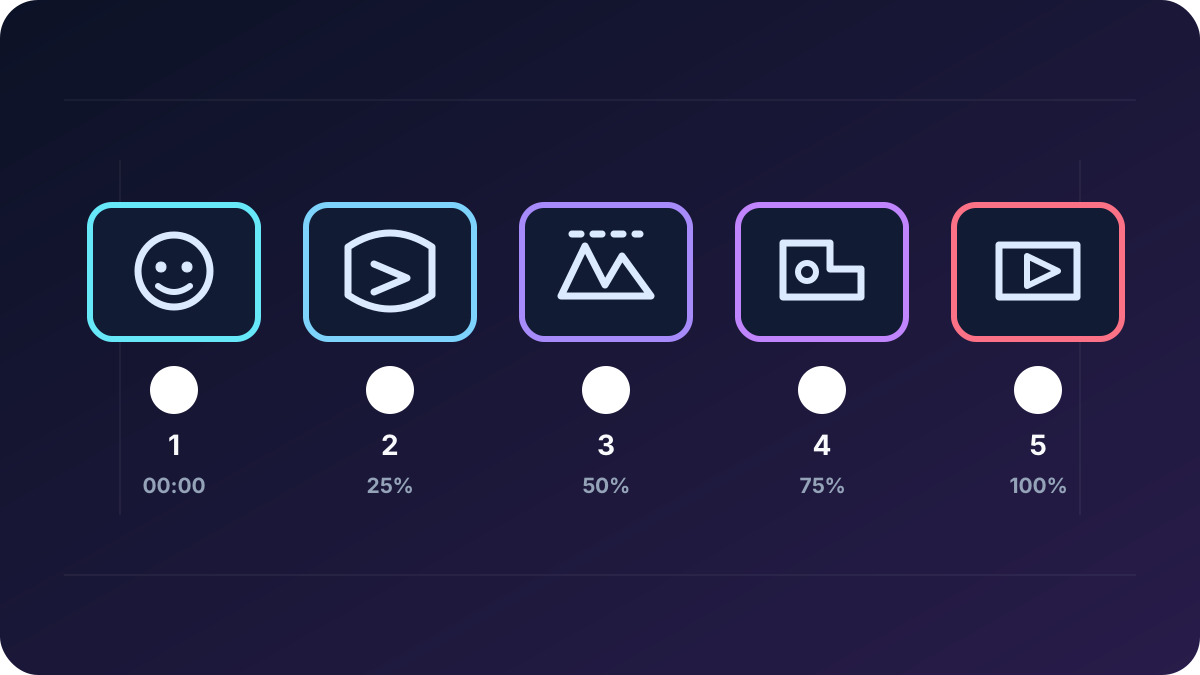
একটি পাঁচ-পদক্ষেপ ব্রাউজার ওয়ার্কফ্লো ব্যবহার করুন: ক্লিপটি স্থানীয়ভাবে মাপুন, এর সবচেয়ে কঠিন নড়াচড়া পরীক্ষা করুন, একটি পরিষ্কার রেফারেন্স মুখ মিলান, সঠিক ক্রেডিট মোট নিশ্চিত করুন এবং শেয়ার করার আগে পুরো ফলাফল পর্যালোচনা করুন।
বর্তমান পণ্য ওয়াকথ্রু
উপরের মূল ভিডিওটি বর্তমান ২৭ আগস্ট, ২০২৬ সালের পণ্য চুক্তি থেকে পুনর্নির্মাণ করা হয়েছে: নির্ধারিত সর্বোচ্চ 1080p আউটপুট, ৬০০ সেকেন্ডের সময়সীমা, ৯৫ MB টার্গেট-ভিডিও সীমা, ৩০ MB রেফারেন্স-ইমেজ সীমা, এবং ৯৫ MB সম্মিলিত অনুরোধ সীমা। এটি শুধুমাত্র প্রস্তুতি এবং বর্তমান সীমা প্রদর্শন করে; এতে গ্রাহকের মিডিয়া নেই, উৎপন্ন ফলাফল উপস্থাপন করে না, বা গুণমানের মানদণ্ড নির্দেশ করে না।
ক্লিপ স্কাউটিং
| ক্লিপ অবস্থা | ঝুঁকি | ব্যবহারিক প্রতিক্রিয়া |
|---|---|---|
| ধীর, সামনের দিকের গতি | নিম্ন | প্রথম প্রতিনিধিত্বমূলক পরীক্ষা হিসাবে ব্যবহার করুন। |
| দ্রুত মাথা ঘোরানো বা প্রোফাইল | উচ্চ | রেফারেন্স কোণ আরও ঘনিষ্ঠভাবে মেলান এবং ট্রানজিশন ফ্রেম পরিদর্শন করুন। |
| হাত, চুল, মাইক্রোফোন বা বস্তু মুখ অতিক্রম করে | উচ্চ | টাইমস্ট্যাম্প চিহ্নিত করুন এবং অস্পষ্টতা অপরিহার্য কিনা তা বিচার করুন। |
| মোশন ব্লার বা কম আলো | উচ্চ | সম্ভব হলে একটি পরিষ্কার সোর্স ক্লিপ ব্যবহার করুন; আপস্কেলিং অনুপস্থিত ল্যান্ডমার্ক পুনরুদ্ধার করতে পারে না। |
| কঠিন কাট বা বড় আলো পরিবর্তন | ভেরিয়েবল | একটি দীর্ঘ সম্পাদনা প্রক্রিয়াকরণের আগে প্রতিটি দৃশ্য আলাদাভাবে পরীক্ষা করুন। |
পাঁচ-ধাপের ওয়ার্কফ্লো
ফরম্যাট, সীমা এবং খরচ
আপলোড করার আগে, ফ্রি লোকাল ভিডিও প্রিফ্লাইট ফাইল পাঠানো ছাড়াই ব্রাউজার-দৃশ্যমান ফাইলের আকার, ঘোষিত টাইপ, মাত্রা, অনুপাত, সময়কাল, রাউন্ড-আপ বিল করা সেকেন্ড এবং ফেস-অনলি ক্রেডিট অনুমান পড়তে। এটি কোডেক, ফ্রেম রেট, অডিও, মুখের দৃশ্যমানতা, পরিচয় ধারাবাহিকতা বা আউটপুট গুণমান পরিদর্শন করে না।
বর্তমান ভিডিও ওয়ার্কস্পেস MP4, MOV বা WebM টার্গেট ভিডিও এবং JPEG, PNG, WebP, HEIC বা HEIF ফেস রেফারেন্স গ্রহণ করে। একটি রেফারেন্স ইমেজ ৩০ MB পর্যন্ত হতে পারে; একটি টার্গেট ভিডিও ৯৫ MB এবং ৬০০ সেকেন্ড পর্যন্ত হতে পারে এবং উভয় ফাইল একসাথে ৯৫ MB বা তার কম হতে হবে। ইন্টারফেস জমা দেওয়ার আগে প্রয়োজনীয় পরিমাণ গণনা করে।
| প্রসেসিং মোড | আউটপুট স্তর | বর্তমান হার | বর্তমান ন্যূনতম |
|---|---|---|---|
| ফেস-অনলি, দৃশ্য সংরক্ষিত | 1080p সর্বোচ্চ স্তর | প্রতি রাউন্ড-আপ সেকেন্ডে ৩ ক্রেডিট | ১২ ক্রেডিট |
ওয়ার্কফ্লো শুধুমাত্র মুখ পরিবর্তন করে এবং মূল শরীর, পোশাক, হাত, পণ্য, টেক্সট, লোগো, ফ্রেমিং এবং দৃশ্য সংরক্ষণ করে; এটি বিস্তৃত চরিত্র বা দৃশ্য প্রতিস্থাপন গ্রহণ করে না। জমা দেওয়ার আগে প্রদর্শিত পরিমাণ কর্তৃত্বপূর্ণ থাকে।
ফলাফল পর্যালোচনা
টার্ন, ব্লিঙ্ক, বক্তৃতা এবং ক্যামেরা নড়াচড়ার মাধ্যমে মুখটি দেখুন। পরিচয় লাফ বা হঠাৎ আকার পরিবর্তনের জন্য লক্ষ্য করুন।
একটি বস্তু মুখ অতিক্রম করার আগে, সময় এবং পরে ফ্রেমগুলি পরিদর্শন করুন।
কাট বা এক্সপোজার পরিবর্তনের মাধ্যমে দৃশ্যের আলো অনুসরণ করে মুখের ছায়া কিনা তা পরীক্ষা করুন।
উদ্দিষ্ট প্লেব্যাক আকারে হেয়ারলাইন, কান, চশমা, হাত এবং চোয়ালের প্রান্ত পর্যালোচনা করুন।
সংক্ষিপ্ত লুপিং গতির জন্য, GIF ফেস সোয়াপ গাইডব্যবহার করুন। চিত্র মান নির্দেশিকা যখন সমস্যাটি ইতিমধ্যে একটি একক ফ্রেমে দৃশ্যমান হয় তখন ব্যবহার করুন, এবং প্রাইভেসি চেকলিস্ট অন্য ব্যক্তির সাদৃশ্য শেয়ার করার আগে।
সম্মতি এবং গোপনীয়তা
আপলোডের আগে নিশ্চিত করুন যে প্রতিটি প্রকৃত ব্যক্তি সম্পাদনা এবং এর উদ্দেশ্যযুক্ত দর্শকদের সাথে একমত। DeepSwapAI আপলোডগুলি AI মডেল প্রশিক্ষণের জন্য ব্যবহার করে না; আপলোড করা এবং তৈরি করা মিডিয়া 24 ঘন্টার মধ্যে DeepSwapAI সার্ভার থেকে সরানো হয়। পর্যালোচনা করুন গোপনীয়তা নীতি অন্য ব্যক্তির সাদৃশ্য শেয়ার করার আগে।
এই গাইডটি কীভাবে তৈরি করা হয়েছে
DeepSwapAI পণ্য দল ২৭ আগস্ট, ২০২৬ তারিখে বর্তমান ভিডিও MIME টাইপ, রেফারেন্স ফরম্যাট, ফাইল সীমা, ৬০০-সেকেন্ড সময়সীমা, নির্ধারিত 1080p মূল্য নির্ধারণ, ব্রাউজার-স্থানীয় প্রি-ফ্লাইট সীমানা, সারি, ২৪-ঘণ্টা মুছে ফেলার প্রক্রিয়া এবং পাবলিক ওয়ার্কস্পেস নিয়ন্ত্রণ পুনরায় পরীক্ষা করেছে। ওয়াকথ্রুতে শুধুমাত্র প্রথম-পক্ষের ওয়ার্কফ্লো চিত্র ব্যবহার করা হয়েছে এবং এতে গ্রাহকের মিডিয়া বা উৎপন্ন ফলাফল নেই। গাইডটি কোনো নির্ভুলতা স্কোর, সম্পূর্ণ করার সময় বা ফলাফলের গ্যারান্টি উদ্ভাবন করে না; দেখুন যাচাইকরণ পদ্ধতি.
পরবর্তী ওয়ার্কফ্লো যাচাই
একটি ছোট বিভাগ নির্বাচন করুন যাতে গতি বা অবরোধ অন্তর্ভুক্ত থাকে, প্রদর্শিত ক্রেডিট অনুমান নিশ্চিত করুন এবং সম্পূর্ণ ক্লিপ প্রক্রিয়াকরণের আগে ধারাবাহিকতা পর্যালোচনা করুন।