
Искусственный интеллект добавляет человека на фотографию в 2026 году: советы, варианты использования и рабочий процесс

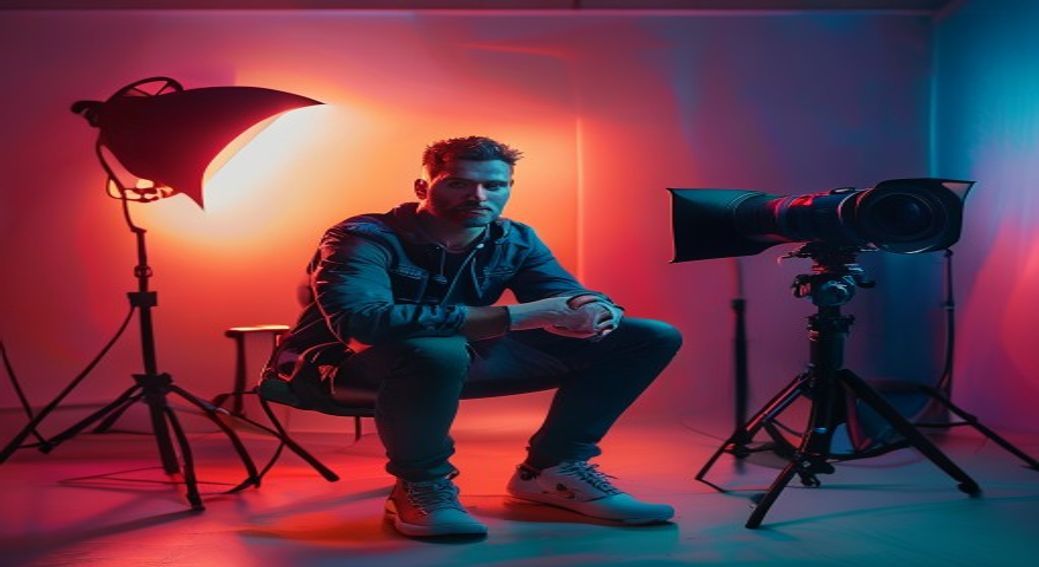
AI Add Person To Photo in 2026: Tips, Use Cases, and Workflow
AI Add Person To Photo on DeepSwapAI delivers what most users actually need from this category in 2026: solid quality, a fast loop, and minimal manual cleanup. Here's how to use it effectively.
What AI Add Person To Photo Does
The job of AI Add Person To Photo is to process portrait and product photos at scale, with as little setup as possible. DeepSwapAI ships it as a focused tool — no overwhelming options, sensible defaults, exportable output.
Step-by-Step Workflow
- Open the tool. Visit deepswapai.com/ai-add-person-to-photo. No account required for basic use on the free tier.
- Upload your source. Drag-and-drop or click to browse. Recommended: high-resolution input (at least 1024px on the long edge for best output quality).
- Configure options if shown. Most photo tools on DeepSwapAI ship sensible defaults — start with those and only override if your output isn't matching expectations.
- Generate. Processing typically completes in 5–30 seconds depending on input size and current queue depth.
- Review and download. Inspect the output at full resolution before downloading. If something's off, re-run — most cases improve on a second attempt with slight prompt or input tweaks.
Quality Tips
- Use the highest export quality. Default exports balance file size and quality — premium tiers usually offer cleaner exports if quality matters.
- Use the highest-resolution source you have. Upscaling later loses detail; starting clean preserves it.
- Crop tight to the subject before uploading. Tools work best when the subject occupies 30–60% of the frame.
- Match lighting consistently. If you're combining inputs, source images with similar lighting blend more naturally.
- Iterate, don't perfect. Three quick re-runs often beat one long manual edit — especially at the prompt-engineering stage.
Common Pitfall
Skipping the preview. Always full-size preview before downloading. The interactive view often hides artifacts that the final export doesn't.
Privacy and Compliance
Data handling. All uploads to DeepSwapAI are processed over TLS, deleted within 24 hours, and never used to train AI models. See /trust for the full compliance posture (BIPA, GDPR, CCPA, EU AI Act Article 50, C2PA Content Credentials).
Quick FAQ
- Can I use the output commercially?
- Yes for content you own the input rights to. Always check the terms for the specific tool and your jurisdiction. EU AI Act Article 50 disclosure may apply for AI-modified marketing media.
- Does it support batch processing?
- Batch is available on premium tiers. For very high-volume workflows, the DeepSwapAI API is the right entry point — see /api-doc.
- What's the best resolution to upload?
- For AI Add Person To Photo, 1024×1024 to 2048×2048 is the sweet spot for most use cases. Lower works but loses detail; higher takes longer to process without much benefit.
Where AI Add Person To Photo Fits in Your Workflow
For agencies, studios, and enterprise teams, AI Add Person To Photo fits cleanly into a content pipeline as a single-step transformation. Pair it with adjacent tools on DeepSwapAI — see the homepage for the full tool index — and you can compose multi-step workflows without leaving the browser.
Try It
Start free at deepswapai.com/ai-add-person-to-photo. No download, no signup for basic use. For higher-volume or batch workflows, see /pricing.